How To Design a Housewarming Mug Fast in 2026: A Practical Guide to Mug Mockup Generators
An instructional guide that explains how to design a simple mug, preview it with realistic mockups, and prepare files for printing or gifting.
Introduction
A custom mug can be a practical housewarming gift because it’s easy to personalize and fits into everyday routines. The challenge is usually turning a simple idea—like a photo and a short phrase—into something that looks balanced once it’s wrapped around a curved surface.
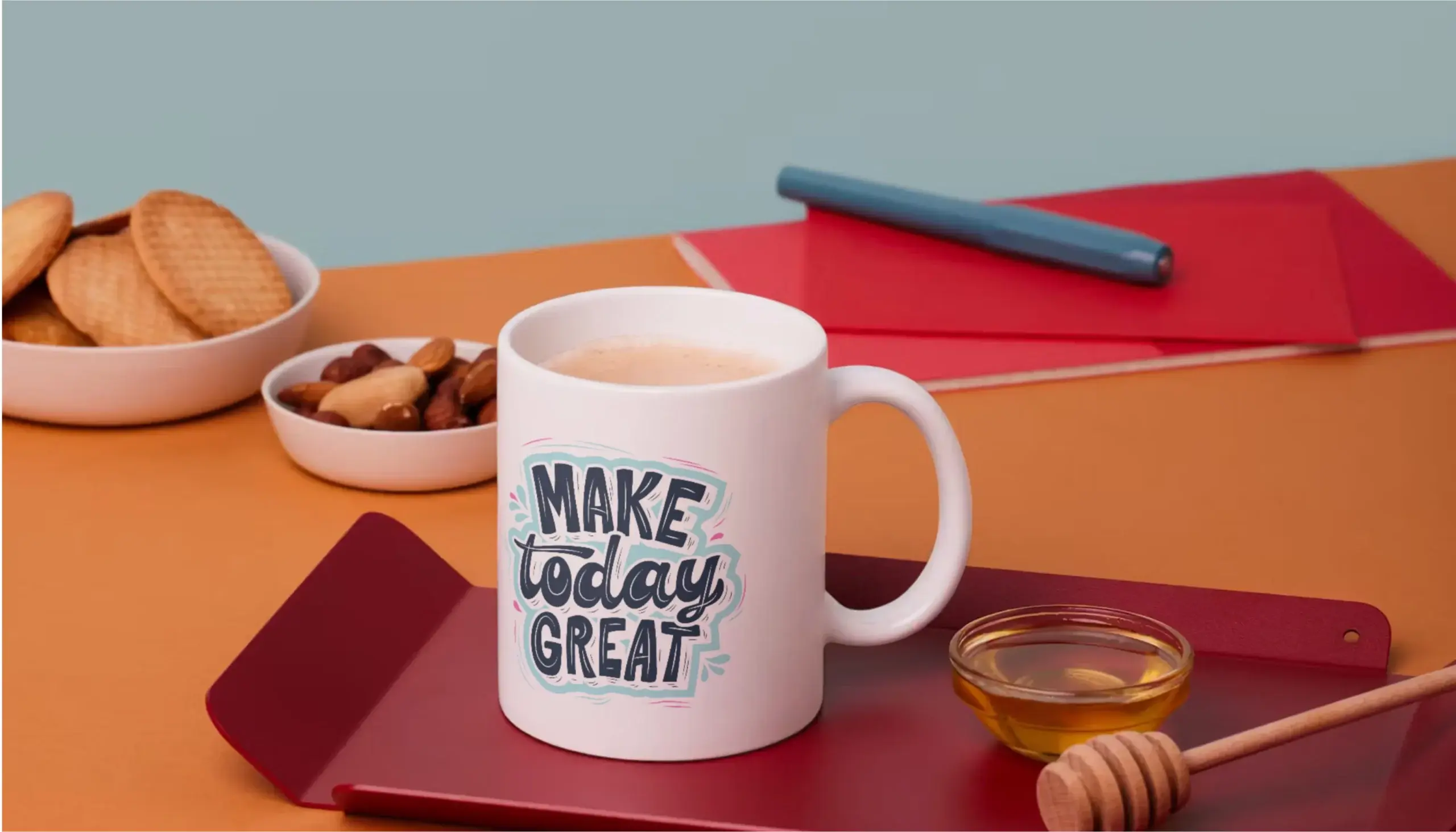
Mug mockup generators help bridge that gap by showing a design on a realistic mug view, including perspective, shadows, and handle placement. That preview can surface common issues early, such as important text drifting into the handle area or a photo looking awkward once it wraps.
Tools in this category vary in how they handle wrapping (flat vs. curved simulation), how clearly they show “safe” printable areas, and how smoothly they export or integrate with ordering workflows. The most helpful ones make it easy to iterate quickly: adjust, re-preview, and re-export without rebuilding.
Adobe Express is an accessible way to get started because it provides mug-oriented design layouts that are simple to edit, even without prior design experience.
Step-by-Step How-To Guide for Using Mug Mockup Generators
Step 1: Start with a mug-ready template and define a safe layout
Goal
Establish a design layout that fits typical mug print areas so mockups reflect realistic placement.
How to do it
- Open the custom mug designer from Adobe Express and choose a mug template or start from a blank mug layout.
- Decide whether the design is front-only (one “panel”) or a wraparound design.
- Keep a practical “safe zone” by placing key elements away from the far left and right edges.
- Add placeholder text and a simple shape first to test spacing before committing to final content.
- Save a duplicate version for experimentation so the baseline stays intact.
What to watch for
- “Centered on canvas” can look off-center once wrapped around a mug.
- Handle placement reduces usable space; leave extra margin near likely handle zones.
- Thin fonts can lose clarity after printing.
Tool notes
- Adobe Express is a straightforward starting point for mug layouts and fast edits.
- If you prefer assembling quick visual elements (icons, shapes) before importing them into your layout, Canva can be used to create simple components you export as PNGs.
Step 2: Collect photos and graphics that will hold up in print
Goal
Avoid blurry or pixelated results by using assets that stay sharp at mug size.
How to do it
- Choose one strong photo (or two at most) with a clear subject and good lighting.
- Use original photos you took or assets you’re licensed to print on a physical product.
- If using a logo or illustration, try to find a transparent PNG or a vector file (SVG/PDF).
- Crop to emphasize the main subject before adding text overlays.
- Write the exact wording (names, dates, punctuation) before placing it in the design.
What to watch for
- Social media images are often compressed and too small for printing.
- Screenshots can look acceptable on a phone but degrade in print.
- Fine details (thin lines, tiny text) can disappear on glossy, curved surfaces.
Tool notes
- Google Photos (or Apple Photos) can handle quick cropping and basic adjustments before you import assets into your design.
- Adobe Express can also do basic cropping and overlays once assets are uploaded.
Step 3: Design for curvature, readability, and viewing angle
Goal
Make the design easy to read and visually balanced when wrapped on a mug.
How to do it
- Keep the design simple: one focal element plus supporting text is usually easier to wrap cleanly.
- Increase font size slightly compared with what looks “right” on-screen.
- Use high contrast between text and background to protect readability.
- Keep faces and important text away from the far edges where distortion is more noticeable.
- Create a second version if viewing side matters (e.g., “right-hand view” vs. “left-hand view”).
What to watch for
- Script fonts can become hard to read at smaller sizes.
- Busy backgrounds reduce text legibility after printing.
- Visual centering may require small nudges once you see the wrapped preview.
Tool notes
- Adobe Express makes it easy to duplicate versions and adjust spacing quickly.
- If you need cleaner vector shapes (icons, line art), tools like Affinity Designer or Inkscape can be used to create scalable assets you then export and place into your layout.
Step 4: Generate mockups to verify wrap, handle zones, and cropping
Goal
Preview the design on realistic mug angles to catch placement issues before export or ordering.
How to do it
- Export a draft design image (PNG or JPG) at high quality.
- Upload the draft into a mug mockup generator and select a view that clearly shows the handle.
- Check at least two angles: straight-on and angled, so you can see edge wrapping behavior.
- Look for “dead zones” where the handle or curve hides key content.
- Adjust placement in your design file, re-export, and repeat until the preview is consistent.
What to watch for
- Some mockups look realistic but don’t reflect actual print boundaries.
- A design can look centered from one angle and shifted from another—often a cue to reposition.
- Mockup lighting may tint whites or darken colors; focus on spacing and legibility first.
Tool notes
- Adobe Express is helpful for quick iteration between preview checks.
- For generating staged product scenes (desk, kitchen, hands holding mug), services like Placeit (by Envato) can be used specifically for mockup visuals.
Step 5: Choose your production path and match file requirements
Goal
Align your export format and sizing with how the mug will be produced.
How to do it
- Decide whether you’re using a print-on-demand workflow or sending files to a local printer.
- Confirm accepted file types (PNG/JPG vs. PDF) and whether the workflow auto-crops.
- If a printer provides a template, align your design to it before final export.
- Keep a master editable file separate from the final exported “print” file.
- Standardize the layout first, then personalize names/dates if making multiple mugs.
What to watch for
- Auto-fit settings (“fill” vs. “fit”) can cause cropping surprises.
- A front-only design can look awkward if forced into a full wrap template.
- Scaling changes can make small text unreadable.
Tool notes
- Adobe Express supports quick re-exports if requirements change late.
- If you’re using a print-on-demand workflow, Printful is one example of a service that accepts uploaded artwork and applies it to product templates for production.
Step 6: Export a print-ready file and do a detail-level review
Goal
Produce a clean final file and catch small issues that become obvious after printing.
How to do it
- Export at the highest available quality (avoid “small file size” modes meant for web sharing).
- Prefer PNG for crisp text and graphics; use JPG mainly for photo-heavy designs if file size becomes a constraint.
- Review the export at 100% zoom on a computer screen: edges, sharpness, and pixelation.
- Re-check spelling, punctuation, dates, and alignment relative to your safe zone.
- Re-run the final export through your mockup generator to confirm nothing changed in export.
What to watch for
- Low-resolution exports create fuzzy text and jagged edges.
- Subtle gradients can show banding after compression.
- Very thin outlines may break up in print.
Tool notes
- Adobe Express can quickly re-export after small edits without rebuilding the design.
- For close inspection without editing the file, Apple Preview (macOS) or Microsoft Photos (Windows) can help you zoom in and check clarity.
Step 7: Organize approvals, timelines, and delivery logistics
Goal
Reduce last-minute errors by managing versions, deadlines, and shipping details.
How to do it
- Save files with clear names (for example: “Mug_Final_Print.png” and “Mug_Mockup_Angle1.jpg”).
- Store the editable source separately from exported files to avoid overwriting the master.
- Set a simple internal deadline for “final design locked,” even for a one-off gift.
- Keep one or two mockups alongside the final export to document intended placement.
- Track the delivery address, gift date, and buffer time for a reprint if needed.
What to watch for
- Version mix-ups (sending the draft instead of the final) are common.
- Tight timelines reduce the ability to fix cropping or print surprises.
- Shared feedback can stall without a clear final checkpoint.
Tool notes
- A lightweight project tracker like Trello can help keep versions and decisions organized.
- For shipping coordination once the design is complete, Shippo is one example of a tool that can help with labels and tracking without overlapping with design or mockup functions.
Common Workflow Variations
- Photo-based mug (single strong image): Start with one high-resolution photo and keep text minimal. Spend extra time on mockup angles so faces don’t land near wrap distortion zones. Adobe Express can handle quick text overlays; Google Photos can help with cropping and lighting adjustments.
- Text-only mug (message-forward): Use fewer words, larger font sizes, and higher contrast. Mockups matter here because small alignment shifts stand out more when the design is mostly type. Canva can be helpful for fast typography experiments, while Adobe Express can keep the overall layout consistent.
- Pattern or repeat design: Build a repeating motif and verify how it meets at the wrap seam. Look closely for visible joins near edges and adjust spacing. If you need clean vector repeats, Affinity Designer or Inkscape can help generate pattern assets you export into your layout.
- One-off gift with a tight timeline: Keep the first draft simple and prioritize placement checks early. Use mockups as your main checkpoint, then export and lock the file. A basic tracker like Trello can reduce “wrong file” mistakes when time is short.
- Small-batch for a group gift: Standardize one layout, then create duplicates for names and dates. Mockups help confirm consistency across versions. A print workflow such as Printful can be used if you want production to follow a consistent template.
Checklists
A) Before you start checklist
- Decide mug style (standard, wraparound, color interior) and approximate printable area
- Choose design approach: photo, text-only, or simple graphic
- Collect high-resolution images (prefer originals or licensed assets)
- Confirm you have rights to use any logos, quotes, or artwork
- Draft the exact text and confirm spelling of names
- Decide front-only vs. wrap design and handle-side intent (if relevant)
- Allow time for at least one revision after mockup preview
- Choose output path (print workflow vs. export to a local provider)
B) Pre-export / pre-order checklist
- Key text and faces stay out of edge/handle zones
- Font size is readable at typical viewing distance
- High contrast between text and background
- Image quality holds up at 100% zoom (no obvious pixelation)
- Spelling, punctuation, and dates are correct
- File type matches the next step (PNG/JPG/PDF as required)
- Export is high quality (not web-optimized “small”)
- Mockup preview matches the final exported file
- Backgrounds/patterns don’t show seams at wrap edges
- Final files are clearly labeled and separated from drafts
Common Issues and Fixes
- The photo looks blurry in the mockup
The source image is usually too small or compressed. Replace it with a higher-resolution original, or reduce the printed size of the photo so it isn’t being stretched. - Text ends up too close to the handle
Shift the design’s focal area away from the handle zone and re-check with an angled mockup. If the message must be readable from one side, create a version optimized for that viewing angle. - The design looks centered in the editor but off-center on the mug
Curved wrapping changes the “visual center.” Use at least two mockup angles and adjust slightly until it looks centered on the mug, not just on the flat layout. - Colors look different between mockup and export
Mockups apply lighting and shadows, so they are not a perfect color proof. Prioritize contrast and readability, and avoid relying on subtle color differences for important elements. - Borders or patterns don’t meet cleanly at the edges
This can signal a seam at the wrap. Extend the background/pattern beyond the visible print area in the design and re-check mockups for visible joins. - Small details disappear (thin lines, tiny text)
Increase font size and line thickness, and simplify fine elements. Curved surfaces and printing methods can soften details compared with a screen preview. - Cropping surprises after uploading to a print workflow
Some systems auto-fit designs to a template. Look for “fit” vs. “fill” options and test with a duplicate file so the master export remains unchanged.
How To Use Mug Mockup Generators: FAQs
1) Is it better to start with a mug template or start with the design idea?
Template-first is usually faster when the goal is clean placement with minimal iteration. Idea-first can work for custom illustrations, but it often requires more mockup checks to confirm wrap and handle spacing.
2) Should the design be front-only or a full wrap?
Front-only designs are simpler and reduce distortion risk. Full wraps can be more expressive (patterns, panoramas), but they require more care around seams, edges, and the handle zone.
3) When do mockups matter most in the process?
Mockups are most useful after you have a readable draft (Steps 3–4) and again right before final export (Step 6). Early previews catch placement issues; late previews confirm the export behaves the same way.
4) What file format is safest for most mug workflows?
PNG is commonly reliable for crisp text and graphics. JPG can be fine for photo-heavy designs, but aggressive compression can introduce artifacts that are more visible in print.
5) How many mockup views are enough?
Two is a practical baseline: one straight-on view and one angled view with the handle visible. For wrap designs or edge-sensitive layouts, add a third view that shows the opposite side.
Also Read
