
How to Safely Force Quit Unresponsive Programs in Windows
Key Takeaways
- Explore various strategies to force quit unresponsive programs in Windows.
- Learn why safely closing frozen applications helps prevent data loss.
- Become familiar with built-in tools, keyboard shortcuts, and helpful utilities for resolving freezes.
Table of Contents
- Using Task Manager
- Keyboard Shortcuts
- Command Prompt Method
- Creating a Desktop Shortcut
- Third-Party Tools
- Preventing Unresponsive Programs
- Conclusion
Unresponsive programs can hinder productivity and leave users feeling stuck, especially during important tasks. Knowing efficient, reliable ways to handle frozen applications on your Windows system can help you regain control and minimize the risk of data loss. Whether you’re troubleshooting for yourself or helping others, this guide will show you several methods, both built-in and advanced, to safely force-quit stubborn programs that have stopped responding.
When a program fails to close or won’t react to input, it can put the rest of your workflow on hold. Many users search for how to force quit on windows when standard closing methods fail, and fortunately, Windows offers a variety of solutions, ranging from simple keyboard shortcuts to powerful system tools so you can act quickly when issues arise. Following the proper steps not only speeds up recovery but can also safeguard your data from corruption.
In this comprehensive guide, you’ll learn about the most effective techniques for terminating unresponsive programs, steps to set up shortcuts for faster recovery, and essential best practices to keep your system running smoothly. Whether you’re a casual user or manage multiple computers in an office, being prepared with these strategies will ensure you can recover from any freeze or lockup with confidence.
Using Task Manager
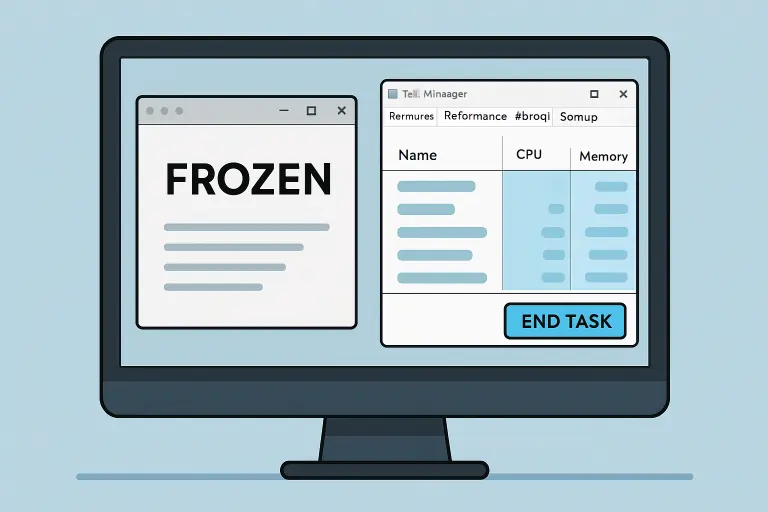
Task Manager is one of the most straightforward ways to close frozen applications. As Microsoft’s official tool for monitoring system activity, Task Manager provides an overview of all active apps and background processes, allowing you to terminate those that have stopped responding manually. In business environments, Managed IT Services often rely on tools like Task Manager as part of a broader monitoring and troubleshooting strategy, helping ensure system stability and minimizing downtime before issues escalate. This proactive approach allows users and IT teams alike to resolve performance problems quickly and keep workflows running smoothly.
- To open Task Manager, press Ctrl + Shift + Esc.
- Navigate to the “Processes” tab, where you’ll see a list of running applications and background processes.
- Select the unresponsive program (it’s often marked as “Not Responding”).
- Click the “End Task” button in the lower-right corner to close the selected application immediately.
This is considered the safest method for most users, as it lets you control which specific process is ended and minimizes the risk of accidentally closing critical background services.
Keyboard Shortcuts
Often, keyboard shortcuts provide a quicker way to close unresponsive apps before resorting to more involved solutions. Two standard options include:
- Alt + F4: While the problematic app is in focus, press Alt + F4 to request it to close. This can terminate the program if it hasn’t crashed completely, and it’s a safe first rescue attempt.
- Ctrl + Alt + Delete: This combination opens a security screen. From here, select “Task Manager” and follow the steps outlined above.
These shortcuts are especially valuable when your mouse becomes unresponsive or navigating menus is not possible due to a freeze. If these methods don’t work, it’s usually best to proceed to more forceful solutions.
Command Prompt Method
Tech-savvy users may prefer using the Command Prompt to force-close specific processes. This method provides granular control and can end stubborn applications that don’t respond, even in Task Manager:
- Search for “cmd” in your Start menu, then right-click and select “Run as administrator” to open Command Prompt with elevated permissions.
- Type tasklist and press Enter to see a list of running processes and their executable names.
- Identify the faulty program’s name, then type:
taskkill /f /im [application_name].exe
- (Replace [application_name] with the actual executable—for instance, notepad.exe.)
This approach is powerful but should be used carefully, as it can terminate background processes and critical services if misapplied. For additional information, visit Microsoft’s official support documentation on ending tasks in Windows.
Creating a Desktop Shortcut
If you regularly deal with unresponsive apps, a dedicated desktop shortcut can be a lifesaver, instantly closing all frozen programs with a single click. Here’s how to set it up:
- Right-click a space on your desktop and select “New” > “Shortcut.”
- Paste the following into the location field:
taskkill /f /fi “status eq not responding”
- Click “Next,” give your shortcut a descriptive name, such as “Force Quit,” and select “Finish.”
When you double-click this shortcut, Windows will automatically close all currently marked unresponsive applications. This method is quick and doesn’t require opening Task Manager or Command Prompt each time.
Third-Party Tools
For users who frequently experience freezes or need additional features, several third-party utilities make terminating unresponsive programs easier and faster. For example:
- SuperF4: This lightweight tool allows you to close focused applications immediately using Ctrl + Alt + F4, even when regular task management isn’t enough. SuperF4 is particularly useful for gamers or power users requiring fast response times.
Always download utilities from reputable sources and read reviews to avoid security risks. Check sites like PCMag or TechRadar for trusted recommendations and in-depth reviews of similar software solutions.
Preventing Unresponsive Programs
Knowing how to fix a frozen system is essential, but taking steps to prevent it in the first place is even more valuable. Limiting the likelihood of apps becoming unresponsive helps preserve overall performance and reduces disruptive workflow delays. Clear, step-by-step resources like PCMag provide a guide on what to do when your laptop freezes, walk users through quick solutions and practical troubleshooting methods that can prevent minor glitches from developing into recurring issues.
Adopting proactive habits further lowers the chances of system freezes. Regularly updating your operating system, drivers, and software ensures you benefit from ongoing performance and stability enhancements. Running routine malware and security scans is also critical, as viruses and spyware are common causes of slowdowns and freezes. Keeping an eye on memory and CPU usage in Task Manager can help prevent system overload from too many simultaneous applications. With consistent maintenance and attention to system health, many problems can be addressed early—before they become persistent or disruptive.
Conclusion
No one wants to deal with frozen programs, but having a range of practical solutions at your fingertips makes it much easier to recover quickly and safely. Whether using tried-and-true methods like Task Manager, keyboard shortcuts, Command Prompt, or specialized utilities, it’s essential to approach force quitting with the goal of protecting your data and your system’s stability. Implementing preventive measures ensures a smoother, more productive Windows experience in the long run.
Read more: How New Technologies Are Shaping the Fight Against Securities Fraud – SizeCrafter
Tax-Advantaged Real Estate Investments: Strategies for Building Wealth – SizeCrafter
BASIX Certificate Requirements: Your Complete Compliance Guide for NSW Homes – SizeCrafter
